Tracker Settings
Clicking on a tracker in the 3D view, or it's name in the Data panel, will bring it up in the Tracker Settings panel. Here, you can mix, conform, and filter the data associated with the camera. The panel is broken down into multiple folders, each with their own settings.

General settings
- Zero: Sets tracker stage zero, and un-twists tracker axis relative to camera. Reality Field is designed to have all trackers 0'd, their data may not make sense otherwise.
Reality Field is designed to have all trackers 0'd, their data may not make sense otherwise.
- Tracker Floor Offset: Used to set height from tracker datum to floor
- Free-D ID: Sets the ID of the camera for the Free-D output
Axis Mapping
The Axis Adjust panel allows you to alter the positional and rotational axis of the tracker. Note that this only affects the output, and will have no affect on the 3D view.
- The XYZ/PTR dropdowns allow you to remap axis.
- The Invert position/rotation buttons allows you to invert different axis. The 4th rotational inversion is the W component of the rotational quaternion, and is effectively an "invert all."
- The unit scale changes the scaling of the output positional units. All units in Reality Field are natively in meters. For Unreal Engine, setting this to 100 will convert to centimeters.
Filter Movement
Here, you can specify a filter for positional data and analyze tracker movement.
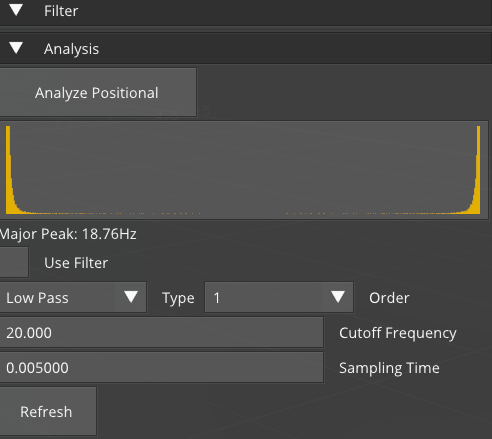 The general workflow is as follows:
- Do not move the tracker, and under Analyze, click Analyze Positional. This will collect samples and analyze jitter frequencies.
- The frequency with the most movement will be displayed as the Major Peak. Run this several times to get an idea for the lowest jitter frequency.
- Using a low pass filter, enter a frequency lower than the lowest Major Peak. For example, if the lowest value was 13hz, try 9hz cutoff.
- Under the trackers Data tab, find the Update Rate under Positional. Match the Sampling Time to the update rate, in seconds. E.g. if the update rate is 24Hz, enter 0.042. Smaller values will smooth more.
- Click Refresh to see the changes
Lens/Camera
This folder lets you select camera and lens data sources to attach to the tracker. RF intelligently provides you options based on what is possible, rather than making the user figure it out. For example, lens data will be pulled from incoming Free-D streams and made available automatically, but Free-D will not be available as a Camera source since it does not carry camera data.
Camera data is only sent via LiveLink and OSC. Currently, the follow camera parameters are sent:
- White Balance
- Tint
- ISO
- Shutter Speed
Save/Load
This folder allows you to save and load tracker settings. Clicking save will save an XML file with the name of the tracker to your Data folder within your Reality Field install folder. The zero of the tracker is saved and can be passed to other trackers in this way.